



If you use an Android phone and productivity tools like AppBlock, you may sometimes see a strange line in your browser address bar, system logs, or WebView output. It might look confusing or official, like a link that should lead somewhere, yet it doesn’t open a website anywhere. The line looks like this:
content://cz.mobilesoft.appblock.fileprovider/cache/blank.html
At first glance, it feels like a puzzle. Is it a broken link? An error message? A sign of a problem with your phone? The short answer is absolutely not. It is simply part of how Android manages files and blocks content when apps like AppBlock step in.
This article will explain exactly what that string means, why you see it, what it does, and how Android’s system makes it safe and normal. You will learn how the operating system routes file access through secure providers and why a tiny placeholder HTML file appears in place of restricted content. By the end, you’ll understand both the technical basics and practical implications of seeing this content reference on your device.
What Does content://cz.mobilesoft.appblock.fileprovider/cache/blank.html Actually Mean?
The first part — content:// — tells Android this is not a web link or a typical file path. Instead, it’s a Content URI, which is a special format Android uses to let apps request files from one another without exposing sensitive internal paths.
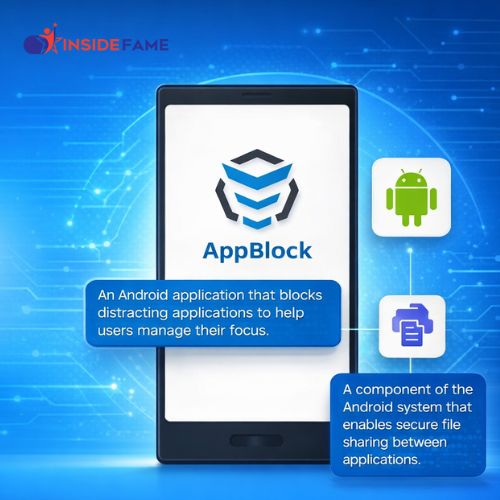
The next part — cz.mobilesoft.appblock.fileprovider — is an authority. This identifies which application and internal component are responsible for handing out the file. In this case, it points to AppBlock, a productivity app many users install to block distracting websites and apps at specific times.
Finally, /cache/blank.html points to a file inside the app’s cache directory. That file is usually a very simple HTML document — often blank — that the app serves when it wants to show a placeholder page or block something instead of the content you tried to open.
Seeing this string simply means the Android system is handling a request through a secure process. It doesn’t mean there’s an error or a broken link. It’s just a route name telling Android where to find a tiny HTML page inside the AppBlock app.
How Android Handles App Files Safely
Android does not allow apps to read each other’s files directly. If you try to navigate to an app’s private storage the usual way, the system will block you. This protects your privacy and keeps apps from snooping on each other’s data.
So how can one app share a file with another? The answer is through a Content Provider. Android apps declare content providers in their configuration. These providers control access to certain directories or files, allowing safe sharing without exposing the app’s entire file system.
When one app wants to share a file with another, the system gives out a content URI instead of a raw file path. The receiving app then asks the Android Content Resolver to open a stream to that URI. If the provider grants access, the resolver returns the file contents securely.
This method ensures that apps never hand out raw internal paths like “/data/data/…”. Instead, they hand out short internal links like the one you see with AppBlock.
Why AppBlock Uses a Blank HTML File
AppBlock is designed to help you stay focused by preventing access to websites or apps at scheduled times. When it intercepts a blocked request, it needs something to show instead of the page you tried to visit. That’s where blank.html comes in.
Instead of letting your browser show an error, AppBlock forces the request to a local file inside its own cache. This tiny file is empty or displays a simple “blocked” notice. Loading a local asset is faster and cleaner than trying to load a remote page that doesn’t exist or showing a network error.
That also explains why the content:// address appears in your browser history. It is what the system loaded when AppBlock blocked the content. It’s not a harmful link. It’s just the way AppBlock shows you a harmless placeholder.
This process is similar to how some other browsers or apps show “no internet” pages while still operating within the system’s file access rules.
Inside FileProvider: How Android Makes It Work
A key part of this system is a built‑in Android component called FileProvider. Developers register FileProvider inside their app manifest to let Android control which files can be shared and how.
The manifest contains a few important entries:
-
The provider class — telling Android this is a FileProvider.
-
The authority — a unique name identifying this provider.
-
Flags — telling Android which kinds of permission grants are allowed.
-
XML paths — a file listing exactly which directories and subdirectories can be exposed.
When all these are set up, the app can give out content URIs for files inside those allowed paths. FileProvider becomes a controlled gatekeeper that serves file streams only to those who request them properly.
So when AppBlock or another app needs to show a local file, Android checks the provider’s configuration and then opens the file’s contents through the Content Resolver. That is why you see short, safe content references instead of raw file locations.
Common Places You See the Content URI in Real Life
Seeing this line on your phone can happen in several real scenarios. None of these are signs of a virus or malfunction.
Developer Tool Logs
If you use developer tools or inspect logs, Android often prints content URIs when apps request internal files. These logs may show the full content address, or sometimes a shortened tokenized version.
WebView Pages
Apps that embed a WebView to show web content sometimes load local files when they want to block or replace external websites. A URI pointing to a blank HTML file is a natural choice for a placeholder.
Browser History
When a blocked site is replaced by the blank HTML, your browser may record the content URI as a page visit. It looks strange, but it simply reflects what was loaded.
System Reports
Some system services record which resources were accessed, and this shows up as a content reference pointing into an app’s cache. Again, this does not indicate anything malicious or harmful.
Across these settings, the format may vary slightly — like seeing “content://…/blank.html” — but they all refer to the same underlying mechanism.
How to Stop Seeing content://…/blank.html in Your Browser
If you want to stop seeing this specific line in your browser history or WebView, you essentially need to stop AppBlock from intercepting blocked content. Here’s how:
• AppBlock and Android Content Provider Highlights
-
AppBlock is an Android app that blocks websites and apps based on schedules.
-
AppBlock uses Android’s Content Provider mechanism to serve a placeholder file.
-
The content URI format is a secure Android convention, not a harmful link.
-
Content URIs let apps request files without exposing internal storage paths.
-
FileProvider is the Android component that manages and serves these files.
-
The blank HTML file is a simple placeholder displayed when content is blocked.
-
Other apps may also use content URIs for their own internal resource handling.
Adjust AppBlock’s Web Filtering Settings
-
Open AppBlock on your Android device.
-
Go to the Settings menu.
-
Find the Web Filtering or Website Blocking options.
-
Review your blocked list and remove sites you don’t want restricted.
-
Save your changes so AppBlock stops blocking those sites.
Disable AppBlock Temporarily
Swipe down from the top of your screen and locate the AppBlock notification. Tap Pause or Disable. This stops AppBlock’s blocking rules temporarily. You won’t see the content URI while blocking is paused.
Remove AppBlock Completely
If you don’t need AppBlock at all, go to your phone’s Settings → Apps → AppBlock, then choose Uninstall. Removing the app permanently stops all related content URIs from appearing.
Clear AppBlock Cache Data
If AppBlock is on but you want to clean temporary files, go to Settings → Apps → AppBlock → Storage → Clear Cache. This removes cached placeholder files. The app will recreate blank.html automatically if blocking continues.
Configure Browser Restrictions Instead
You can also manage content restrictions directly through your browser’s settings. Modern browsers let you block sites, manage site permissions, and control privacy directly. Switching to browser-native controls can reduce reliance on third‑party blocking apps.
Deep Dive: How Android Routes Through Providers and Why It’s Safer
Raw file paths expose your internal storage. If apps handed out raw locations, any other app could attempt to read, copy, or misuse protected content. Android’s secure approach avoids that by using the Content Provider system.
Here’s what it achieves:
-
No raw path exposure — Internal storage locations remain hidden.
-
Strict permissions — Apps can grant access only to specific resources.
-
Temporary access — Access can be given and revoked.
-
Safe cross‑app sharing — Files travel through controlled channels.
In other words, when you see a content URI instead of a direct path, Android is protecting your data and keeping apps in their own sandboxed spaces.
The blank HTML file is simply a quick, lightweight resource that AppBlock can serve without exposing any sensitive structure.
Handling and Opening Content URIs the Right Way
For developers, the correct way to work with a content URI is through Android’s Content Resolver. You should never attempt to guess a file’s actual storage location.
The right approach is:
-
Use
getContentResolver().openInputStream(uri)to read the file. -
Catch exceptions like
SecurityExceptionif you lack permission. -
Respond with the right MIME type (like
text/html) if serving into a WebView. -
Avoid holding long‑term grants unnecessarily.
-
In a WebView client, use
shouldInterceptRequestto supply your own data if needed.
These patterns align with Android’s permission model and ensure stable, secure access.
Troubleshooting: Common Issues and Fixes
“Permission Denied” Errors
Check that the app requesting the file has the appropriate permission. If the URI came from another app via intent, make sure it set the correct grant flags.
“File Not Found”
Cache files are temporary. If AppBlock’s cache was cleared or expired, the file might not exist until it is needed again.
WebView Shows Errors
Make sure your WebView client is set up to handle content URIs properly and returns the correct MIME type.
Slow Load Times
Keep blank HTML files minimal. Serving large or complex placeholders defeats the purpose of a quick, local page.
Confusing Log Output
Logs may print different versions or spaced‑out forms of the URI. Treat them all as pointing to the same underlying resource.
Best Practices and Performance Tips
When using content URIs in Android:
-
Use unique authority names to avoid conflicts.
-
Keep allowed paths tight and minimal.
-
Grant permissions only when essential and revoke when done.
-
Avoid logging full URIs in sensitive environments.
-
Keep placeholder content small and efficient.
-
Use streaming I/O rather than reading entire files into memory.
These practices keep apps efficient and respectful of user privacy.
Final Thoughts
Seeing content://cz.mobilesoft.appblock.fileprovider/cache/blank.html on your phone may look odd, but it is a normal part of how modern Android manages file access between apps. The string is not a web link or a harmful address. It is a secure, internal reference used by AppBlock and Android’s Content Provider system to serve placeholder files safely and efficiently.
Once you understand that Android routes file access through providers to protect data — and that apps like AppBlock use tiny blank pages to block restricted content — the mystery disappears. What once looked like a confusing string becomes a simple, predictable part of Android’s smart design.
Frequently Asked Questions (FAQs)
1. Is content://cz.mobilesoft.appblock.fileprovider/cache/blank.html harmful?
No. It’s a safe internal reference used by Android apps to serve a placeholder file. It does not pose any security risks.
2. Why does this show up in my browser history?
When AppBlock blocks a website, it replaces the content with its own local file. Your browser records that file’s address just like any other page visit.
3. Can this address be opened directly in a browser?
Not usually. Most browsers don’t understand Android’s content scheme unless the app handling the request has permission and can talk to the Content Resolver.
4. Does this mean AppBlock is spying on my browsing?
No. It means the app is enforcing your configured rules and replacing blocked content with a safe placeholder.
5. How can I stop seeing this in my logs?
You can disable or uninstall AppBlock, or adjust its blocking settings so fewer sites are intercepted.
6. What happens if I clear AppBlock’s cache?
Clearing the cache removes temporary files, including blank.html. The app will recreate the file if blocking is still active.
7. Can other apps open this URI without permission?
No. Android checks permissions before granting access to content URIs.
8. Why does Android use content URIs instead of file paths?
Content URIs protect internal storage, enforce permissions, and keep apps from accessing each other’s private files directly.
9. Who creates the blank.html file?
AppBlock generates it as a placeholder for blocked content.
10. Is this related to a virus?
No. It’s a legitimate function of Android and AppBlock, not malware.
11. Will disabling AppBlock remove this entirely?
Yes. If you stop using the app, its providers stop serving those URIs.
12. Can I customize the placeholder instead of a blank page?
Yes. Developers can supply custom HTML with simple messages instead of a blank page when blocking content.
FOR MORE : INSIDE FAME
